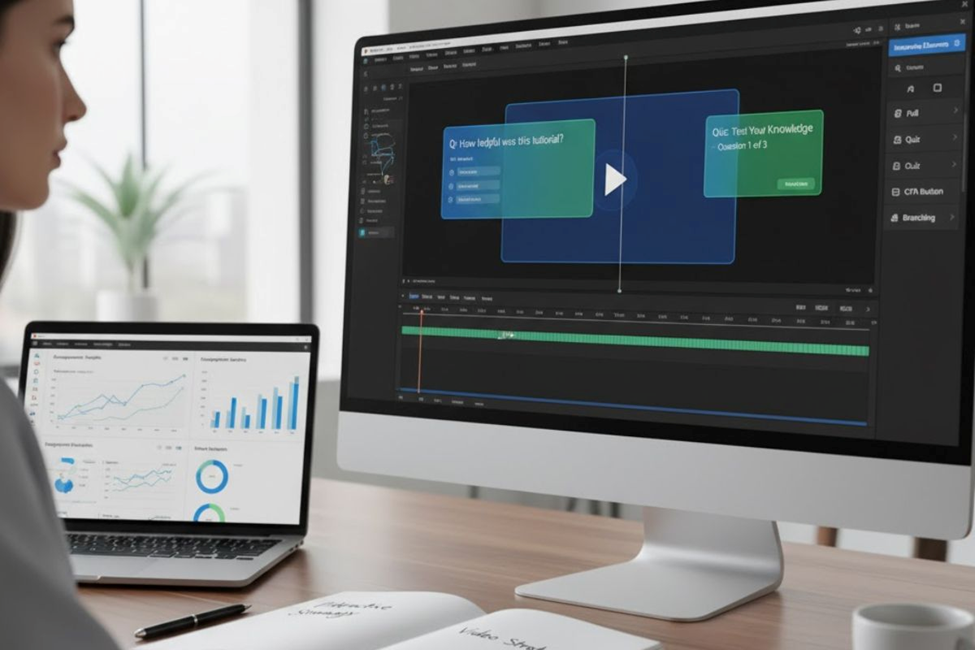
Traditional training videos have a problem. Learners hit play, zone out after a few minutes, and retention drops. The content becomes background noise while they check emails or scroll through tabs. L&D teams spend weeks creating polished videos only to watch completion rates stall around 60%. Sound familiar?
The solution isn’t creating more content. It’s making what you already have more engaging through interactive elements like polls, quizzes, and clickable choices that transform passive watching into active participation.
Understanding Interactive Video Content
Think about the difference between attending a lecture and participating in a workshop. Interactive videos bridge that gap in digital learning. Instead of just watching, viewers click buttons, answer questions, and make choices that influence what happens next.
These aren’t traditional videos with basic play and pause controls. They include clickable hotspots that reveal additional information, multiple-choice questions that lead to different scenarios, and embedded forms for feedback collection. Branching paths let viewer choices determine the storyline, while knowledge checks test understanding in real-time.
The applications span product demos, training modules, education, and simulations. Sales enablement teams use them for scenario-based learning. Customer education programs rely on them to guide users through complex processes. Onboarding programs leverage them to improve comprehension and reduce compliance risk.
The Effectiveness Question
Students consistently report that interactive videos feel more enjoyable and effective for learning compared to passive content. But beyond preferences, the data tells a compelling story.
In controlled medical education studies, learners using interactive video outperformed those studying with standard online materials. Organizations shifting mandatory training from long lectures to short interactive modules have seen completion rates jump from 85% to 97% within three months.
Adding knowledge checks and branching scenarios drives these improvements. The interaction data reveals everything: which clicks happened, correct versus incorrect answers, and exact drop-off points. Teams can easily identify knowledge gaps and iterate based on real behavior patterns.
Higher completion rates translate to better retention. When learners actively engage instead of consuming content, they remember what matters. The shift from watching to doing makes the difference.
How to Add Polls to Your Downloaded Video Clips
Step 1: Prepare Your Video Content
You don’t need to create videos from scratch. Most teams already have training materials in existing video files, PowerPoint’s, or recorded sessions. Start by downloading and organizing your video clips that need interactive elements.

Step 2: Upload Your Video Clips
Access your video editing platform and upload the downloaded video clips you want to enhance. The system analyzes your content and prepares it for adding interactive elements.
Step 3: Add Poll Questions
Navigate to the interactive components section and select “Add Poll.” Position the poll at strategic points in your video where viewer input matters most. Create your poll question with multiple answer options that viewers can click directly within the video timeline.
Step 4: Configure Poll Settings
Set whether polls are required or optional, decide if results display immediately, and choose whether answers affect the video’s progression. Keep poll questions concise and relevant to the video content.
How to Create Quizzes within Video Clips
Step 1: Identify Knowledge Check Points
Review your downloaded video clips and mark moments where testing comprehension makes sense. Place quizzes after explaining key concepts or demonstrating important procedures.
Step 2: Build Quiz Questions
Add interactive quiz questions in single or multiple-choice formats. Write clear questions with distinct answer options. Include feedback for both correct and incorrect answers to reinforce learning.
Step 3: Set Quiz Parameters
Decide whether learners can retry questions, how many attempts they get, and what passing score they need. Configure whether the video pauses during quizzes or continues playing.
Step 4: Create Branching Based on Answers
Make quiz responses meaningful by directing learners to different video segments based on their answers. Incorrect responses can loop to review sections, while correct answers advance to new material.
Adding Interactive Buttons and CTAs
Buttons and CTAs let viewers take action within your video clips. Click the interactivity options in your editor to add buttons that send viewers to URLs or jump to specific scenes. Keep button text short, clear, and action-oriented. Examples: “See the demo,” “Try this scenario,” or “Check your answer.”
At the end of each branching path, include a button that returns viewers to the main content flow or leads to a closing CTA. This prevents learners from getting lost while giving them control over their experience.
Enhancing Visual Appeal in Your Video Clips
Generate custom B-roll clips by describing what you want to see, or upload your own supplementary footage. Visual variety keeps attention and reinforces key concepts through multiple formats.
Add talking avatars from available libraries to create a consistent face learners associate with your training. Select avatars based on your audience and content tone for better connection.
The combination of your downloaded video clips, relevant B-roll, interactive polls and quizzes, and engaging avatars creates a richer learning environment than any single approach alone.
Publishing and Tracking Performance
When you finish adding interactive elements to your video clips, generate and publish your enhanced video. The real work starts after launch with a clear measurement plan.
Key Metrics to Track
Completion rates show how many learners finish versus drop off from your video clips.
Poll participation rates reveal how many viewers engage with your embedded polls.
Quiz performance tracks question attempts, pass rates, and correct answer percentages.
Click-through rates on CTAs show whether your calls-to-action resonate with viewers.
Drop-off points identify problem areas in your video clips requiring fixes.
Analytics measure not just views but how viewers interact with polls, quizzes, and other elements you’ve added to your downloaded video clips.
Interactive Elements That Drive Engagement
Understanding which elements serve your objectives helps you transform basic video clips into engaging learning experiences.
Clickable Hotspots
Clickable hotspots work as interactive areas that open links, jump to scenes, or reveal content. They’re perfect for product tours requiring additional context within your video clips.
Branching Scenarios
Branching scenarios create choose-your-own-path experiences where quiz answers and poll responses lead to different video segments. These prove ideal for sales training and customer service simulations.
Quizzes with Retry Options
Quizzes test understanding through multiple-choice questions with retry capabilities. They’re essential for compliance training where proving comprehension matters.
Polls and Surveys
Polls and surveys collect feedback, opinions, and information directly in your video clips without breaking the viewing experience. Use them to gauge understanding, gather preferences, or segment viewers.
Chapters and Navigation
Chapters and navigation menus let viewers jump to relevant sections in longer video clips. This becomes crucial for training modules that not everyone needs to watch completely.
Transcripts and Closed Captions
Transcripts and closed captions remain essential for accessibility and comprehension across all learning styles and abilities. Add them to all your interactive video clips.
Starting Small and Scaling Up
Interactive polls and quizzes respond to real challenges: low completion rates, poor retention, and dropping engagement. Whether enhancing sales training clips, compliance modules, or customer education videos, the principles remain the same.

Start small rather than overhauling everything at once. Pick one downloaded video clip that’s underperforming. Add a simple poll or knowledge check quiz. Test with a small group, measure results, and iterate based on what you learn.
Keep interactions focused and valuable rather than adding elements just because you can. Each poll question and quiz should serve a clear purpose in the learning journey.
Conclusion
Adding polls and quizzes to your downloaded video clips doesn’t require starting from scratch or hiring production teams. Take what you already have, layer in strategic interactions at key moments, and watch passive viewers become active learners. The difference shows up fast—in completion rates, quiz scores, and how much people actually remember weeks later.
Frequently Asked Questions
Can I add polls and quizzes to any video format?
Yes, most platforms support common formats like MP4, MOV, and AVI for adding interactive elements to your downloaded clips.
How many quiz questions should I include in a 10-minute video?
Add 2-4 knowledge checks in a 10-minute video to maintain engagement without overwhelming learners or disrupting flow.
Do interactive polls work on mobile devices?
Modern interactive video platforms are mobile-responsive, so polls and quizzes work seamlessly across phones, tablets, and desktops.
Can viewers skip polls and quizzes in my videos?
You control whether interactive elements are required or optional based on your training objectives and completion requirements.
What’s the best placement for quizzes in training videos?
Place quizzes immediately after explaining key concepts or demonstrating procedures, and always include one at the video’s end.
No Comments yet!